Summary
This guide explains how to open a support request (“ticket”) directly from your DiverseHosting Client Area.
Before you start
- Check our System Status page to see if there’s an ongoing incident related to your service.
- Have the following details ready (where relevant):
- Affected service or domain name.
- A clear description of the problem and when it started.
- Steps to reproduce the issue.
- Any error messages (copy/paste or screenshot).
- Recent changes (e.g., DNS updates, plugin installs, migrations).
- Approximate impact (is the site/email down for all users or some?)
Submit from the Client Area
- Sign in to your DiverseHosting Client Area.
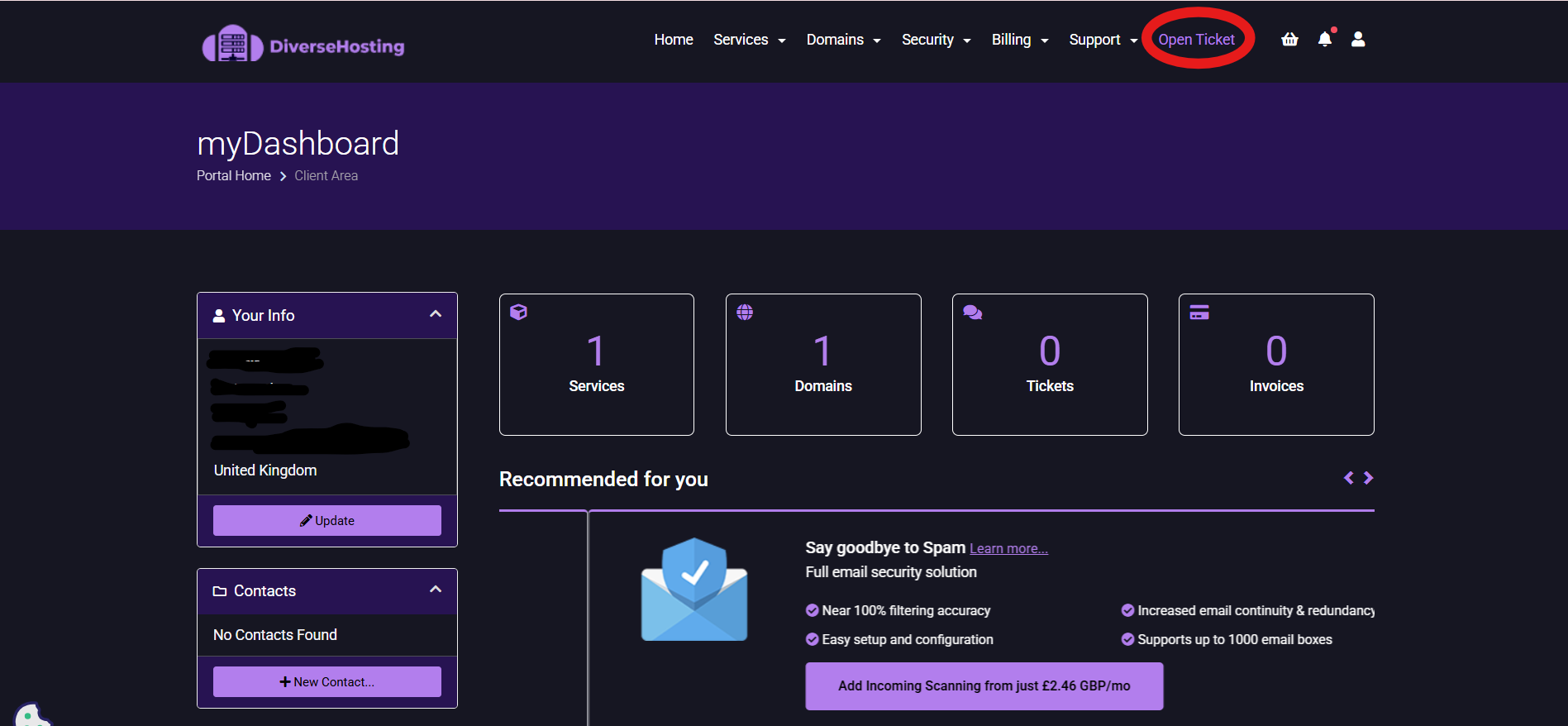
- In the top navigation, click 'Open Ticket'.
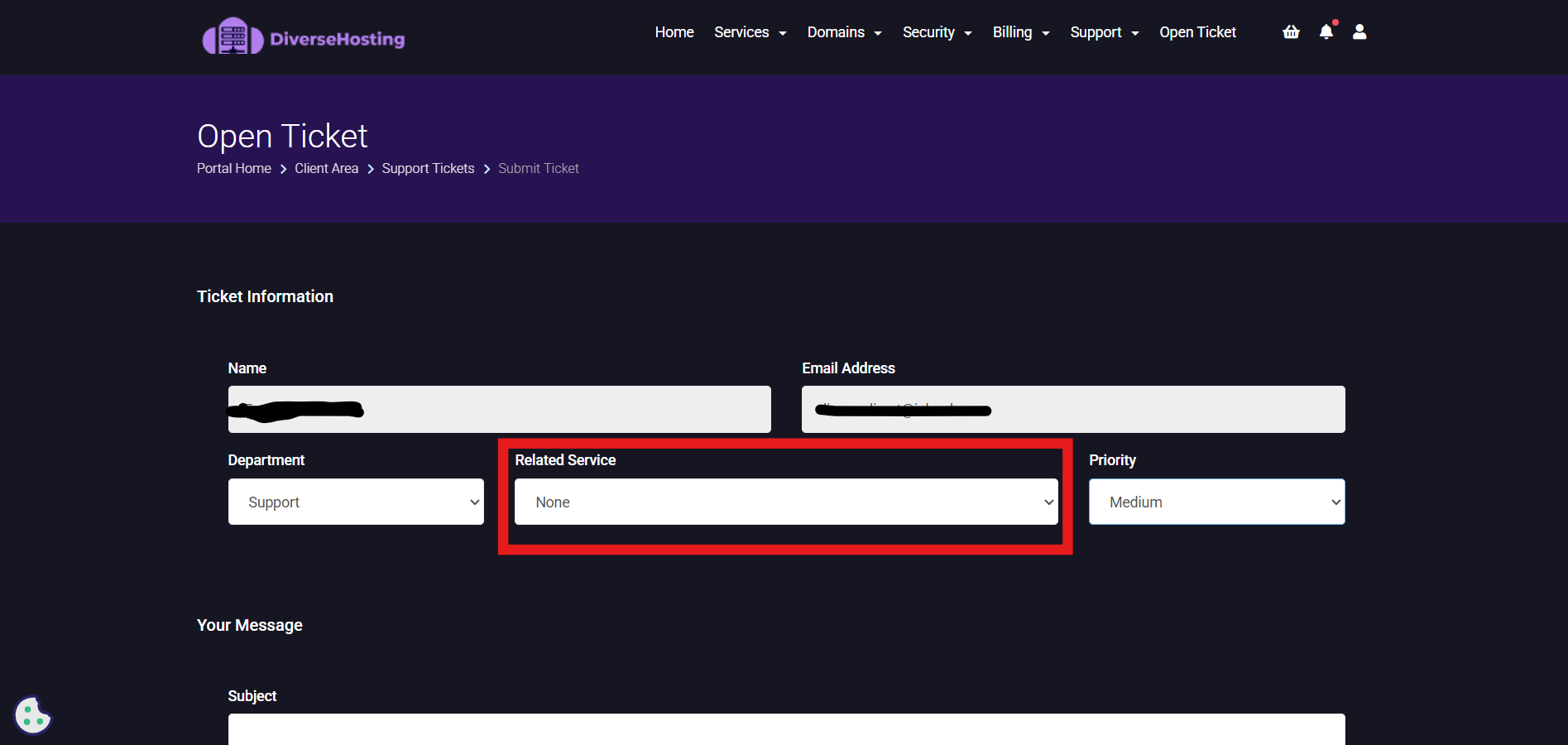
3. Your name and email will autopopulate, you can then select which related service you require support for.
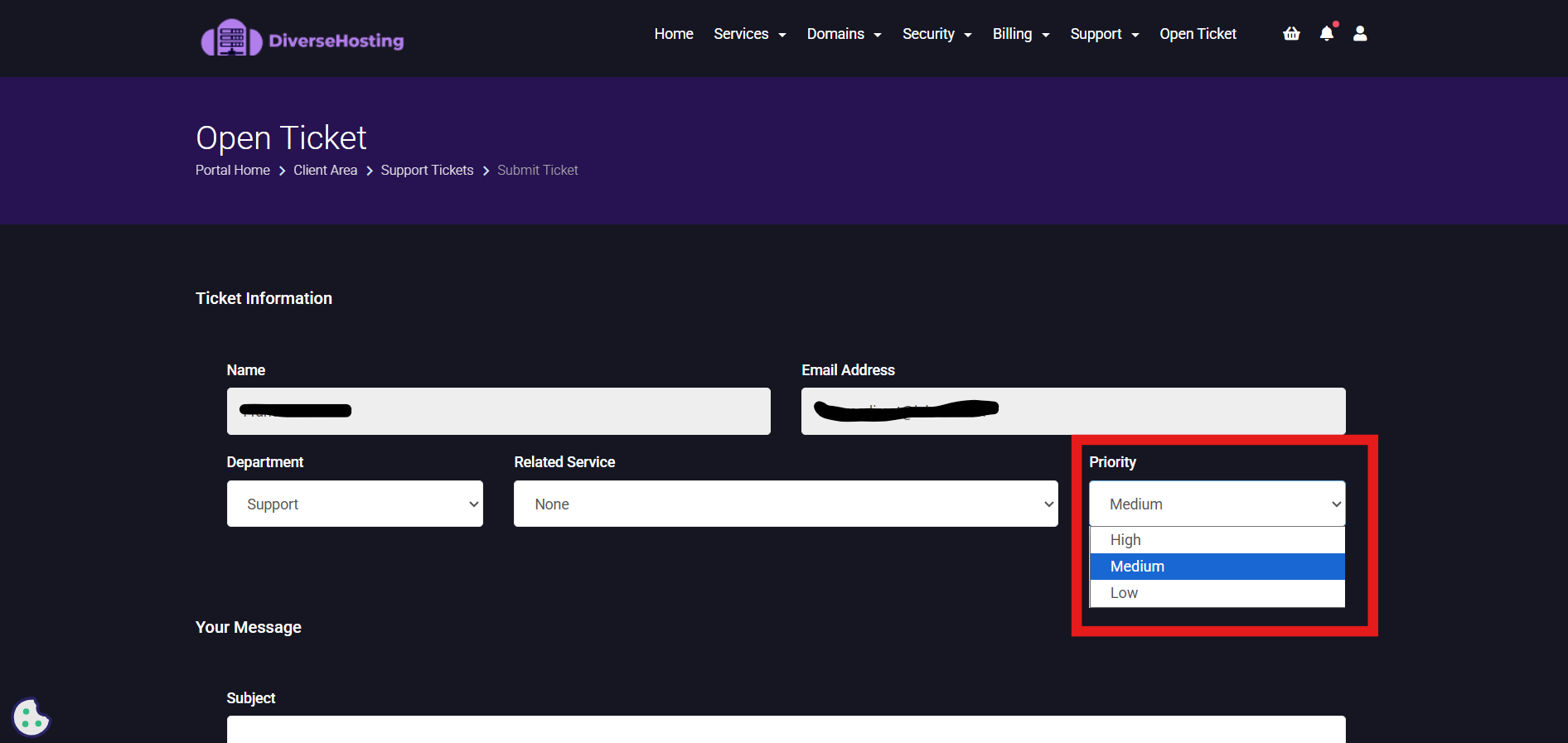
4. You now need to select the 'priority' level of this issue.
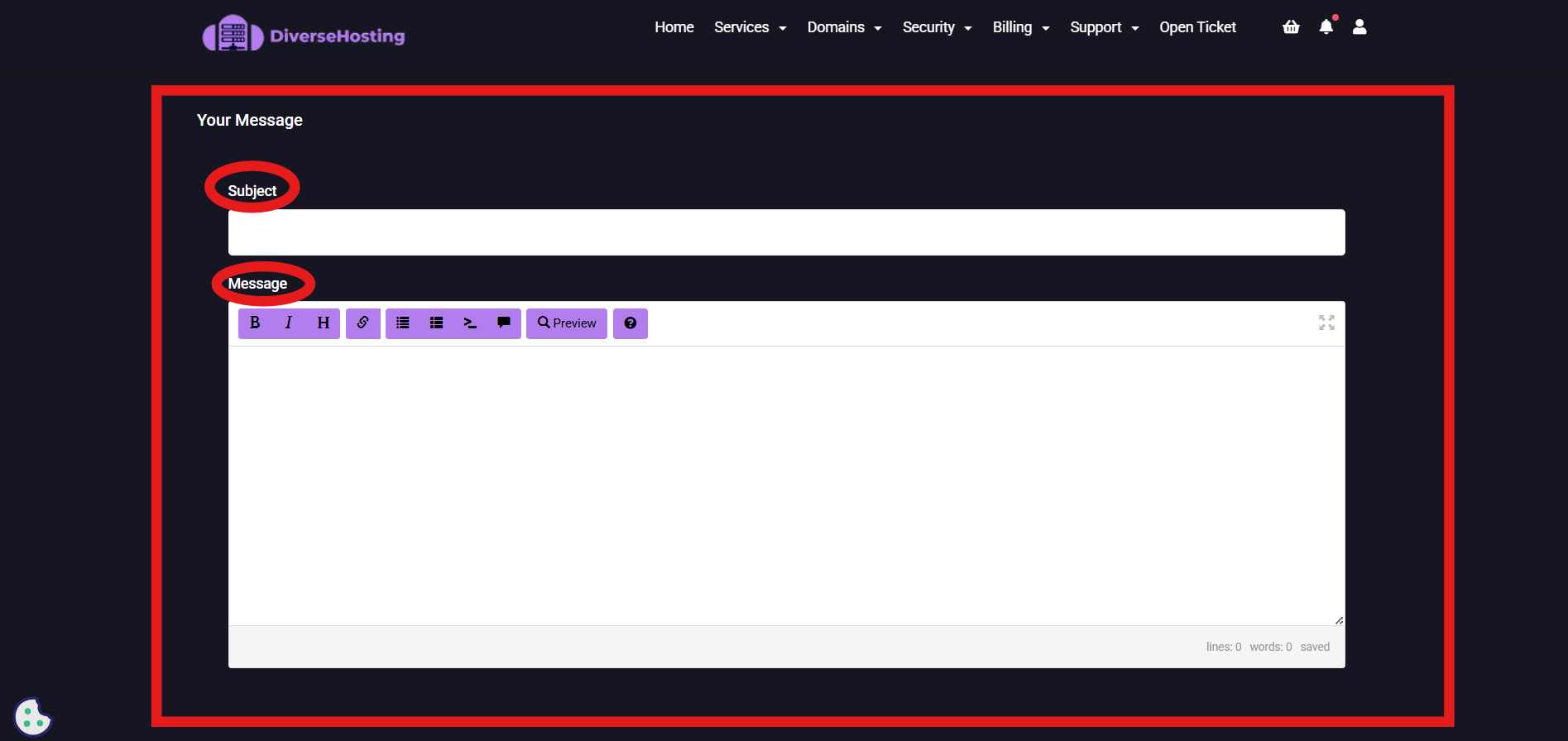
5. Now you will need to let us know the details of why you are submitting this ticket. You will give the ticket a 'subject' and a 'message' (please be as clear and as concise as possible giving as much detail as you can)
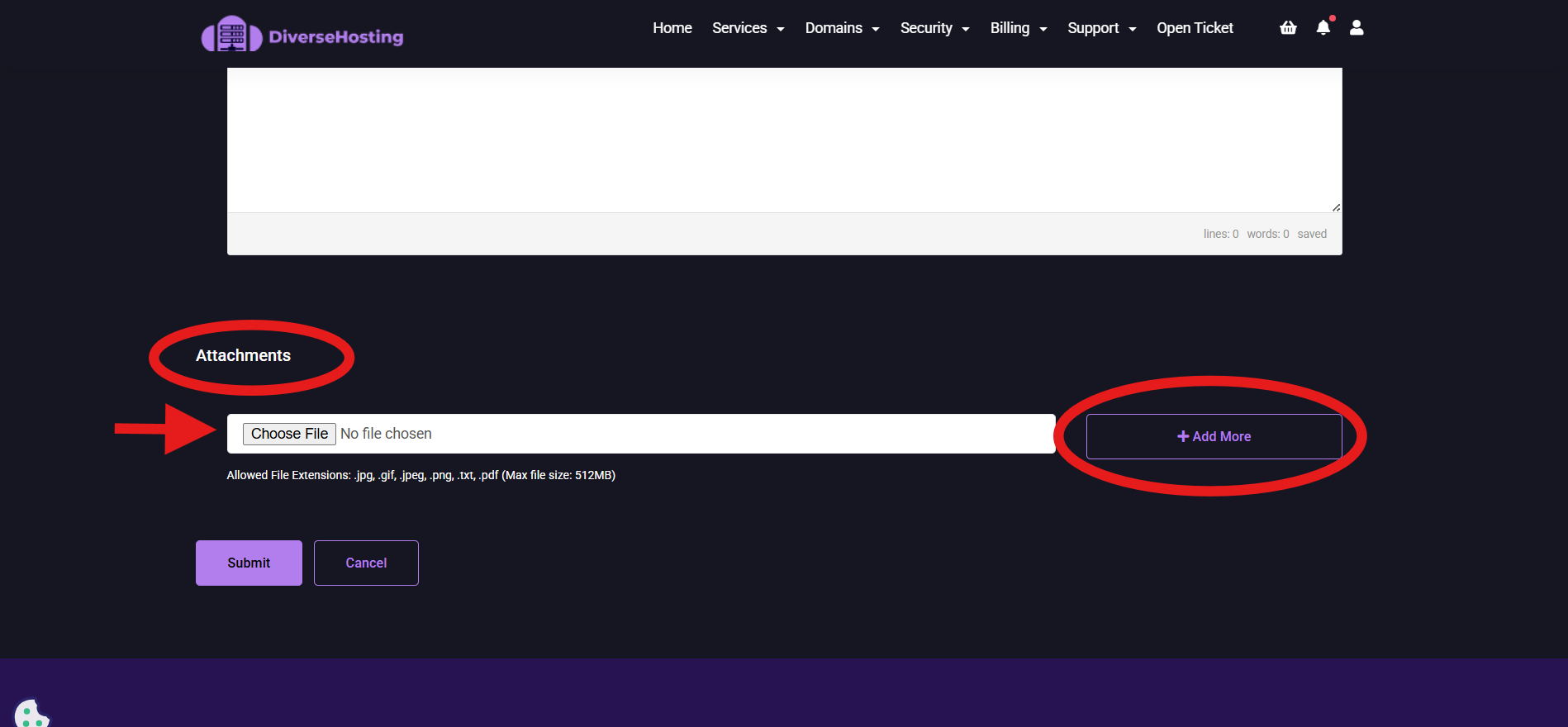
6. Now you will have the option to attach any thing that will support us with the issues you are facing. This could be screenshots or videos that will give us a clear understanding of what is happening. Please attach a files you may have by clicking 'Choose File'. If you have more than 1 file you can click '+ Add More' button and attach more files.
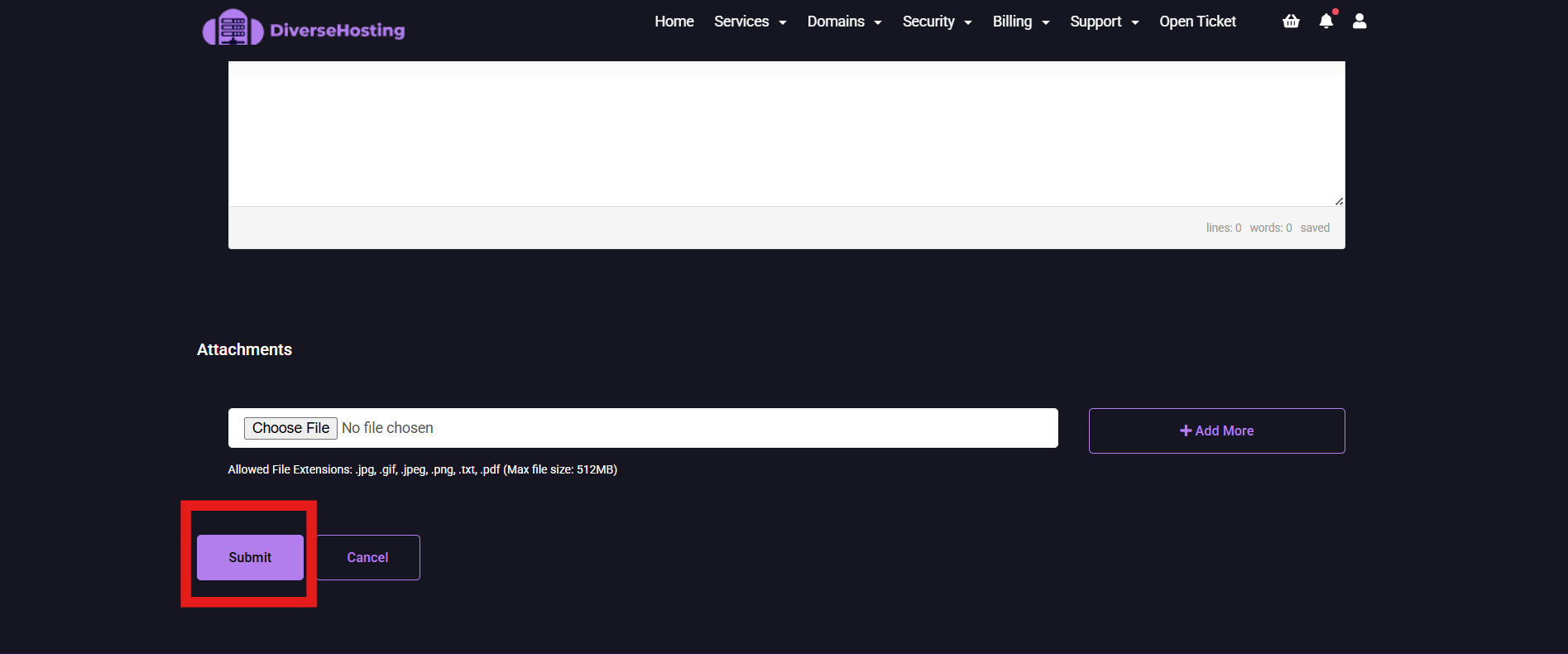
7. Once you have filled in all the information and attached relevant files to support us in resolving your ticket you are ready to submit your ticket to us. When you are ready click on 'Submit'
You have now successfully submitted a support ticket. Our support team will be in touch shortly with you to assist you with your issue.
